
OpenClaw Smart Home Skills: Control Your Home with AI
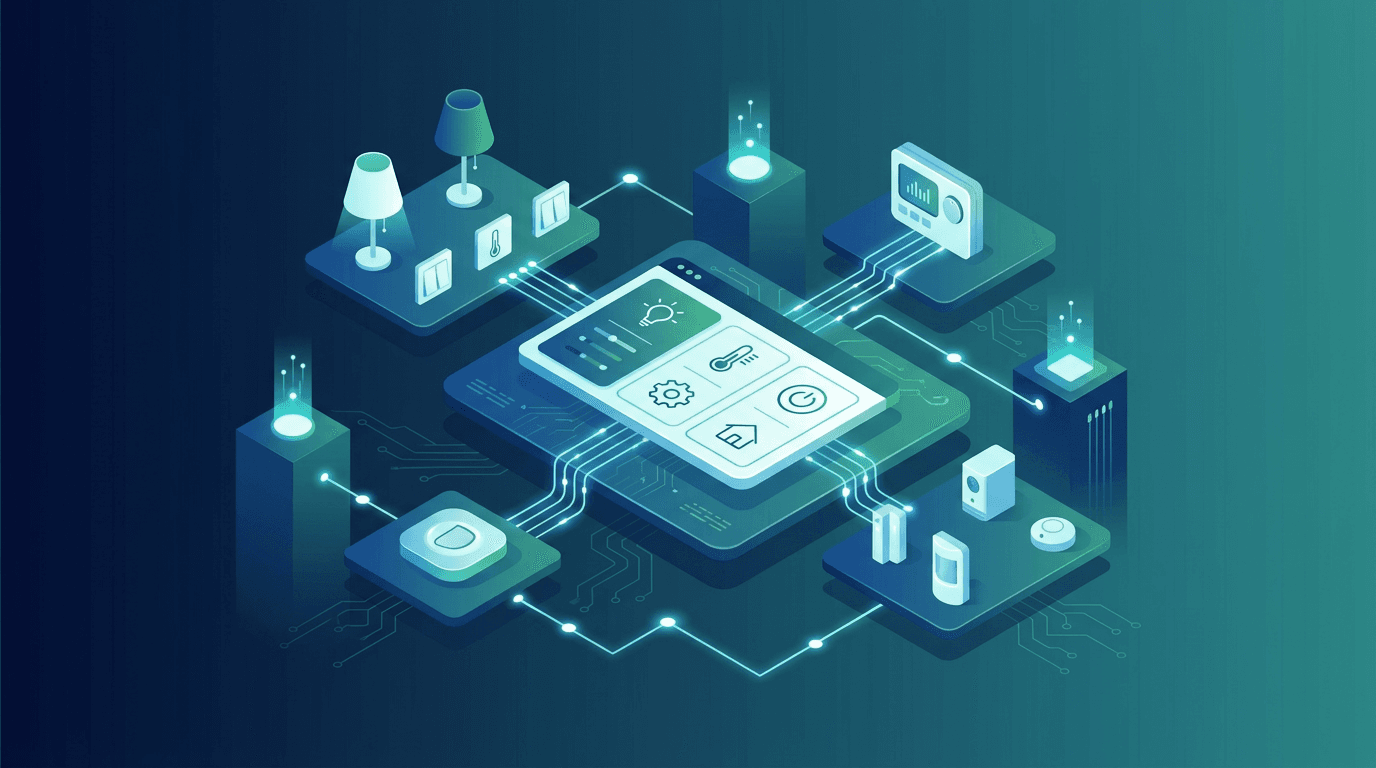
Controlling a smart home through natural conversation is one of the most practical uses for an AI agent. No app switching, no hunting through menus, no remembering which device is on which platform. Just say what you want, and it happens. ClawHub currently lists 56 smart home skills, and this guide covers the most important ones. Here is everything you need to know about turning OpenClaw into the brain of your smart home.
Why AI Beats Traditional Smart Home Control
Traditional smart home setups rely on rigid automations. If the temperature drops below 68, turn on the heat. If it is after sunset, turn on the porch light. These work fine for predictable scenarios, but they fall apart when context matters.
With an OpenClaw agent, you can factor in multiple variables naturally. "It is going to rain this afternoon and you have guests coming at 6, so the living room is set to 72 degrees, the pathway lights are on early, and the thermostat schedule is adjusted for the extra body heat." That kind of contextual reasoning is impossible with traditional trigger-based automations.
The combination of language understanding, real-time data access (weather, calendar, location), and device control creates a smart home that actually feels smart. If you are new to what a personal AI assistant can do, smart home control is one of its most tangible benefits.
Home Assistant: The Foundation Skill
The Home Assistant skill is the cornerstone of any OpenClaw smart home setup. Home Assistant already supports thousands of devices and integrations, and the OpenClaw skill brings all of that into your conversational interface.
What It Can Do
The skill connects via Home Assistant's REST API and WebSocket interface. Through it, your agent can:
- Control devices directly: turn lights on/off, set brightness and color, adjust thermostats, lock/unlock doors, open/close garage doors, and trigger any switch or cover.
- Read device states in real time: check if doors are locked, whether motion was detected, current temperature readings from sensors, and energy consumption data.
- Execute scenes and scripts: activate pre-configured scenes like "Movie Night" or "Good Morning" that control multiple devices at once.
- Monitor automations: check which automations have run recently, trigger them manually, or disable them temporarily.
Setting It Up
Installation is straightforward. You need a running Home Assistant instance (local or cloud), a long-lived access token generated from your HA profile page, and the skill configured with your HA URL and token.
Once connected, the agent automatically discovers all available entities. On first setup, it maps out the rooms, device types, and naming conventions so it can respond naturally. "Turn off the kitchen lights" works because the agent knows which entities belong to the kitchen.
Real Usage Patterns
Here is how OpenClaw smart home skills work in day-to-day practice:
Morning routines: During heartbeat polls, the agent checks the time and weather. If it is a weekday morning, it gradually increases bedroom light brightness 15 minutes before the alarm, sets the thermostat to the daytime schedule, and starts the coffee maker if it is connected. For more on automating morning workflows, see how to automate your morning routine with AI.
Proactive alerts: The agent monitors door and window sensors. If a door has been open for more than 10 minutes, or if a window is left open and rain is forecast, it sends a notification. This kind of cross-referencing between Home Assistant states and weather data is where the AI layer adds real value.
Energy awareness: By tracking energy sensors, the agent can report on daily power consumption, flag unusual spikes, and suggest adjustments. "Your HVAC used 40% more energy today than average. The temperature was set 3 degrees lower than usual, which might explain it."
Midea AC Skill
The Midea AC skill provides specialized control for Midea air conditioning units, which are sold under several brand names worldwide. While Home Assistant can control Midea units through its integration, the dedicated skill offers more granular features.
Capabilities
- Temperature control with 0.5 degree precision
- Mode switching: cool, heat, auto, dry, fan-only
- Fan speed adjustment: auto, low, medium, high, turbo
- Swing control: horizontal, vertical, both, off
- Sleep mode and ECO mode toggling
- Timer and scheduling
- Real-time power consumption reporting
When to Use It vs Home Assistant
If you have a single Midea unit or want fine-grained control over specific AC features, the dedicated skill is worth installing alongside Home Assistant. It exposes settings that the generic HA integration sometimes misses, like turbo mode and precise swing angles.
For multi-brand setups where the AC is just one of many devices, managing everything through Home Assistant is simpler.
IoT Integrations Beyond Home Assistant
Not everything needs to go through Home Assistant. Some ClawHub skills connect directly to IoT platforms and devices.
Smart Plugs and Switches
Several skills support popular smart plug brands directly. These are useful for simple on/off control of devices that do not need complex automation: fans, space heaters, holiday lights, or any appliance you want to control remotely.
Camera and Security
Camera skills enable viewing live feeds, capturing snapshots, and reviewing motion events. When paired with OpenClaw's node system (which supports camera access on paired devices), you get a conversational security system. "Show me the front door camera" or "Were there any motion events in the garage last night?"
Environmental Sensors
Temperature, humidity, air quality, and light level sensors feed data into OpenClaw's awareness. The agent uses this data during heartbeat polls to make proactive suggestions. High humidity? Suggest running the dehumidifier. Poor air quality? Recommend opening windows or running the purifier.
Voice Control Through Paired Nodes
OpenClaw's node pairing system turns phones and tablets into voice control endpoints for your smart home. When a node is paired, it can relay voice commands to OpenClaw, which then executes them through the appropriate skill.
This is different from traditional voice assistants in an important way: the conversation is contextual. If you say "make it warmer," the agent knows which room you are in (based on which node you are speaking to), what the current temperature is, and what your preferences are. It does not just bump the thermostat up 2 degrees. It considers the time of day, your schedule, the weather forecast, and your historical preferences.
Setting Up Voice Control
- Pair your device as a node using the OpenClaw app
- Ensure the Home Assistant skill (or relevant device skills) is installed
- Map node locations to rooms in your notes
Once configured, speaking to any paired node gives you full smart home control with the intelligence layer on top. For more on voice capabilities, see the speech and transcription skills guide.
Building Automation Routines
The real power of OpenClaw smart home control comes from combining skills. Here are routines that go beyond what any single platform can do.
Weather-Aware Climate Control
By combining the Weather skill with Home Assistant, the agent adjusts climate settings proactively. If a heat wave is coming tomorrow, it pre-cools the house overnight when energy rates are lower. If a cold front is approaching, it bumps up the heat before the temperature drops.
Calendar-Driven Scenes
The Google Workspace skill provides calendar data. When the agent sees a "Date Night" event on the calendar, it can dim the lights, set the thermostat to a comfortable temperature, and queue up ambient music. When a "Work From Home" event appears, it activates the home office scene with task lighting and do-not-disturb mode.
Presence and Activity Patterns
Over time, the agent learns patterns. It knows when the house is typically empty, when someone usually arrives home, and what the preferred settings are for different times of day. This lets it make small adjustments proactively rather than waiting for commands.
Security Routines
When the "Away" mode is activated (or when the agent detects the house has been empty for a while), it can arm the security system, lock all doors, turn off unnecessary lights, and set the thermostat to an energy-saving mode. It also randomizes some lights in the evening to simulate presence.
The 56 Smart Home Skills on ClawHub
Beyond the big names, ClawHub hosts 56 smart home skills covering a wide range of devices and platforms. These include:
- Lighting: Philips Hue, LIFX, Nanoleaf, and generic Zigbee/Z-Wave controllers
- Climate: Nest, Ecobee, Midea, and generic HVAC controllers
- Security: Ring, Arlo, Wyze, and generic ONVIF camera support
- Entertainment: Sonos, Chromecast, Roku, and media player controls
- Appliances: Robot vacuums, washers, dryers, and kitchen appliances
- Energy: Solar inverters, smart meters, and EV charger controls
The awesome-openclaw-skills list on GitHub curates the best of these with ratings and compatibility notes.
Tips for a Reliable Setup
Keep Home Assistant as the Hub
Even if you install device-specific skills, running everything through Home Assistant gives you a single source of truth for device states. It also means your automations continue working even if OpenClaw is not available.
Name Your Devices Clearly
The agent works best when device names are descriptive. "Living Room Ceiling Light" is far better than "Light 7" or "Entity_0x00158d00045b1234." Clear names mean the agent can understand requests without guessing.
Use Areas and Zones
Home Assistant's area system maps directly to how people talk about their homes. Assigning devices to areas means "turn off the bedroom" works instantly without any custom configuration.
Document Your Setup
Keep notes about your smart home setup in your OpenClaw workspace. Which devices are in which rooms, any quirks or limitations, preferred temperatures, and common routines. This context helps the agent serve you better across sessions.
Conclusion
The smart home category is one of the most rewarding areas of the OpenClaw skill ecosystem. The combination of natural language understanding, contextual awareness, and broad device support creates a home control experience that genuinely outperforms traditional voice assistants and app-based controls.
Start with the Home Assistant skill as your foundation, add device-specific skills where you need deeper control, and build routines that combine smart home data with calendar, weather, and other contextual information. If you want help designing the right agent setup for your home, explore our MCP and API integration services.
For a broader look at the skill ecosystem, see the Best OpenClaw Skills to Install in 2026 ranking. If you are interested in the productivity side, check out The Ultimate Guide to OpenClaw Productivity Skills.